


Connect SARS to DataGrows via API
Updated: Mar 14
This post will cover how to connect DataGrows to SARS eFiling via the SARS API
The steps are listed below:
1. Overview of the Integration
The SARS eFiling API integration allows DataGrows to securely connect to your SARS portfolios. This connection enables:
Automatic import of taxpayer data
Automated daily download of SARS correspondence
On‑demand correspondence retrieval
The ability to link SARS correspondence to your DataGrows SARS tasks for improved workflow management
Submission of IRP6 returns through DataGrows in bulk to SARS.
This functionality significantly aims to improve your turnaround times, reduce manual work, and enable retrieval of recent (the last four months) SARS communication as well as older communication that you save to store and track within DataGrows.
NB: We don’t have the ability to create new Taxpayers in eFiling. You need to load new taxpayers on eFiling and DataGrows will sync them back. Remember to load a SARS Task to track this progress.
2. Obtaining ISV Activation Details from SARS eFiling
Steps in SARS eFiling (see the screenshots below)
You can have multiple portfolios for one firm or each firm can have one, portfolio.
If there are multiple Portfolios you will need to add them one at a time
Log into your SARS eFiling portfolio.
Select the SARS portfolio you want to link
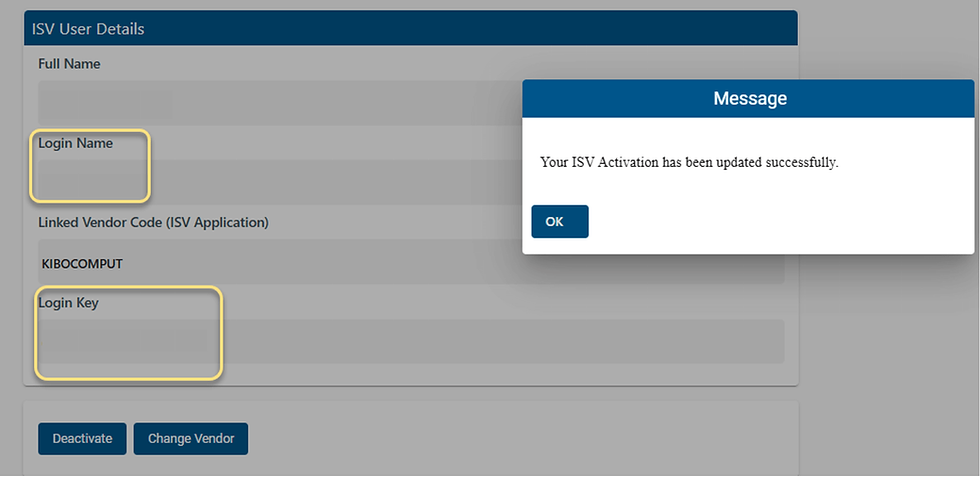
(each Portfolio is an unique SARS ISV User Details record – SARS will generate a unique key for you to login which you will copy into DataGrows)

Click on the Organizations Tab on the SARS Top Menu
Then on the SARS Left menu navigate to: Organization → ISV Activation
Search for and select DataGrows under the registered name Kibo Computers.
Click Save

Once Saved, SARS will generate a unique login key reflected under the ISV User Details display box.

Keep eFiling open on this page and navigate to the next steps.
NB: Each firm or portfolio requires its own ISV User Details record. A portfolio must be an Organisation in order to connect it to an API. If you have an individual client on their own portfolio, please change their profile from Individual to Organisation on eFiling:


This doesn’t affect your client’s income tax or obligations to SARS. It just provides a way to connect the API.
3. Setting Up the SARS API Connection
Navigate to Firm Settings
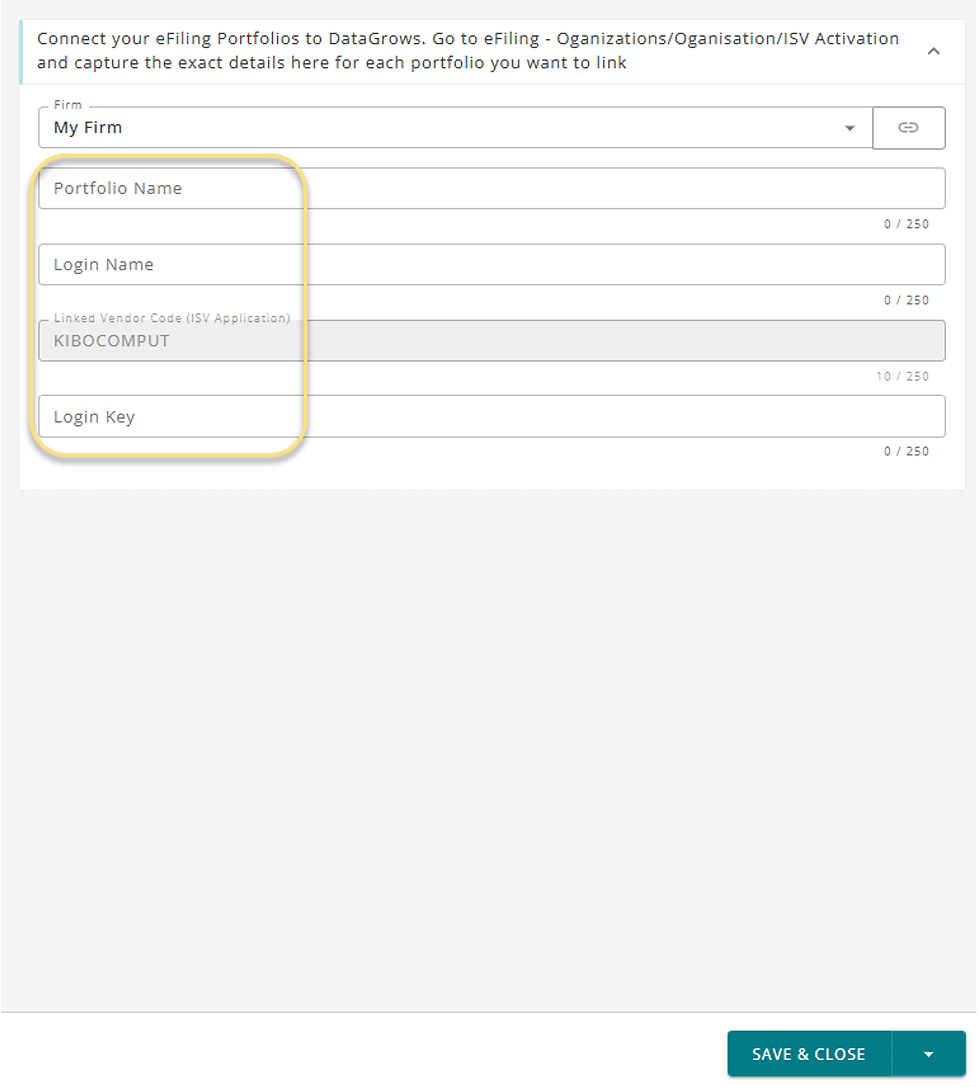
1. Go to Setup Department → Firm Settings.
2. Select the firm you want to connect.
3. Click on the SARS ISV User Details tab.
4. Click Add Record.
Note: This feature supports:
· Multiple Firms on DataGrows
· Multiple SARS EFiling Portfolios (organisation type only)
5. Save the details from eFiling in the same field headings on this record. Copy and paste them please, any errors will result in failure of the connection to SARS.

4. Importing Taxpayers from SARS
After saving your ISV User Details record:
1. Select your firm by checking the checkbox of your firm .
2. Click the Action Import SARS Taxpayers.
3. Ensure that you get the success pop‑up confirming that your taxpayers have been imported.


The Setup of the link between DataGrows and your SARS EFiling Portfolios is then done.
Clients & Linking to SARS
It is crucial that the following Tax Registration numbers are correctly recorded on Client Records if they exist:
Income Tax number
VAT number
PAYE number
These numbers are essential for accessing SARS correspondence, submitting provisional tax returns and any future integrations to SARS:

Where a number matches SARS via the API, the system will automatically tick the following new fields on your Client's Table:
Tax Linked
VAT Linked
PAYE Linked
This will make it easy for you to identify whether the API has linked those Tax Reference numbers to SARS.

If you do not have this information recorded on your Clients table as yet please use our Client Data Upload template to assist you. Getting Started: Accounting CRM and Practice Management Application
5. Validating Client Reference Numbers
To update a Client manually:
1. Navigate to your Clients Table, click on the row of a client record to open it.
2. Scroll down to Statutory Registration Numbers section on the Details Tab.
3. Ensure the Tax, VAT, and PAYE reference numbers are correctly captured.
4. Save the record.
5. The linked checkboxes should be checked for Tax type where appropriate

6. This will allow you to import correspondence for your clients and integrate for the submission of Provisional Tax returns and any future integrations. Note: DataGrows can only download the correspondence of a registration number that is saved on the client. i.e., Simply having the Income Tax Number saved on a client does not enable DataGrows to download correspondence for PAYE or VAT. We need the relevant registration number to download the applicable correspondence for that tax type.
6. Using the SARS ISV Audit Log
To identify clients missing reference numbers:
1. Go to Reports → SARS ISV Audit Log.

2. Review clients with unlinked tax, VAT, or PAYE numbers.
3. Copy missing numbers from the report into client files.

Goal: An empty audit report, ensuring all clients have complete statutory data.
DataGrows only gets a Taxpayer ID and the registration numbers from SARS. If we can link one or more registration numbers to a client, you will see the Client name on the report. Green numbers are then already linked to the client, like our example above for Benita. Red numbers exist for this client on SARS but are not added to their client record in DataGrows. Please copy and paste them to the client.
Where the Client field shows “not linked to client”, it means none of the registration numbers have been added and we can’t identify the client. To solve this, search for the tax reference number on eFiling. SARS will bring up the client if they are on the portfolio you logged in with.
Clients on their own portfolio will not come up in this search so it might take a few tries to find them and link them. But don’t give up. The integration and the benefits will be worth it!

Update DataGrows using the Excel template to speed up entry.
7. Summary of Key Benefits
✔ Automated import of taxpayers
✔ Daily download of all SARS correspondence
✔ On‑demand retrieval for urgent cases
✔ Linking of letters to SARS tasks
✔ Portfolio‑level accuracy checks
✔ Faster turnaround time with SARS
✔ Improved internal compliance visibility
Next Steps
8.1 Save, Request and Submit IRP6s
You can Save, Request and Submit IRP6s directly from DataGrows through our SARS integration. This post will explain how.
8.2 SARS Correspondence Integration
DataGrows can download SARS Correspondence issued for clients from the first day of the current month for all your linked portfolios. This post will explain how.


Comments