


Request and Submit IRP6s
Updated: Jun 22
These sections will show you how to Create, Request and Submit/File IRP6s.
If you have not connected your taxpayers through the API yet, please do so first. This post will explain how.
The post below will cover:
1. Calculate Tax Payable
This section will cover how to create & request records under the IRP6 table, perform the calculations, and obtain approval for your clients' payments. The calculation is really, really cool. And going to save you a ton of time with everything that we've put into it.
This section can be broken down as follows:
1.6 Troubleshooting
This diagram shows the flow that we will be guiding you through in the steps below.

1.1 Request the IRP6 record
DataGrows will automatically run a request each night to see if new Provisional Tax Tasks can be requested from SARS (i.e. once the DataGrows task is created for the new period, we will automatically request a new IRP6 from SARS if the due date is within 30 days).
However, you can also request it in DataGrows in real time if you do not want to wait for the overnight process.
To do this:
Go to the Tax Department - Provisional tax. Provisional tax records will be scheduled here based on the services you have enabled in the Client table.
You can filter on the period or due date column if you do not want to view all records.
Ensure the rows per page is set to the maximum in the bottom right corner
Select the clients that you want to Create and Request an IRP6 record for, by checking their checkboxes to the left of the records.
Go to Actions - Request IRP6 (If you do not see this action, it is likely that your user access does not permit you to access it.)
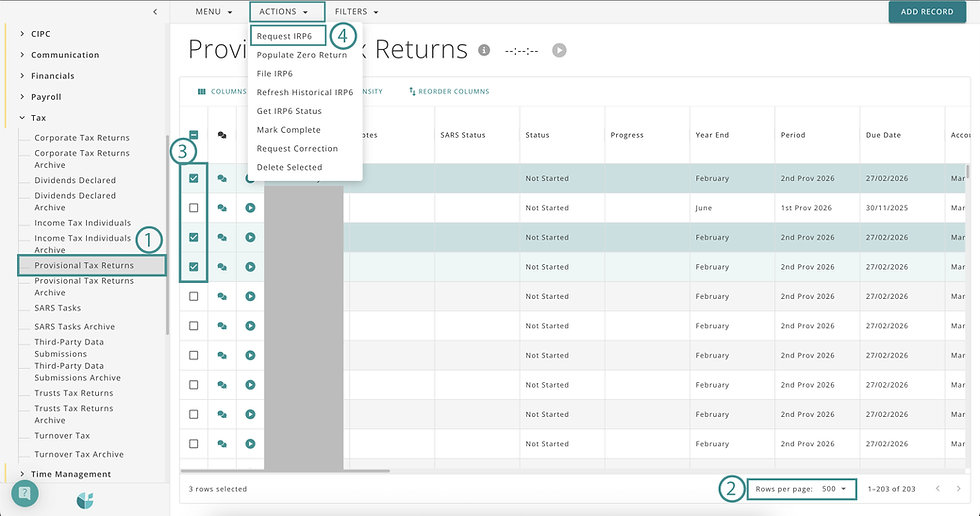
Once the Action has been run, the SARS Status column will update to “Waiting for SARS”. SARS processes the returns in batches, and the queue is determined by SARS. DataGrows will refresh the SARS Status overnight, but you can run the Action "Get IRP6 Status" after 2 hours if you need to submit urgently.
If the IRP6 records were issued successfully, the SARS Status will show ‘Issued’.
If an error occurs, it will be displayed in the SARS Status as ‘Error’ with an actionable note in the SARS Log field, indicating how to resolve the issue. Open the Provisional Tax Record and scroll down to IRP6 SARS Log.

1.2 To see successful IRP6 records
You can view the IRP6 task for one client by:
Clicking on the client record in the Provisional tax table
Then going to SARS - SARS IRP6 in the top right
Then click on the square with the arrow pointing up and to the right, which can be found above the table heading.

Or view all IRP6 tasks by going to:
SARS in the left navigation
Then SARS IRP6
Here, you will see the client's name, their tax number, and the period of return for which we are currently preparing their declaration.

1.3 Completing the calculations.
When you open any of the records in the SARS IRP6 table, you will see some fields where you can insert values and a lot of greyed-out fields. All greyed-out values are either collected from SARS once the return is requested, or after saving the record to calculate the tax.
You will see that our tax calculator also includes a calculator for companies, which is great.
To use the tax payable calculator:
Tax for Companies: Small Business vs Normal Tax Rates:
Go to Tax - Provisional tax
If you scroll to the right of that client record, you will see a column titled "Small Business Tax," which indicates whether a company qualifies for small business tax.

If the client qualifies for Small Business Tax, the indicator can be set by going to the client in the Clients table
And opening their record
Go to the Small Business Tax tab at the top
Complete the relevant record by answering the questions; “Yes” to all 5 will change the Small Business Tax indicator to Qualifies.
Save the client. Ensure the Provisional Tax task shows 'qualifies'.

Go back to SARS IRP6.
Complete the Gross Income and Estimated Taxable Income fields.
Leave the Tax on Estimated Taxable Income field blank; you can adjust this later if needed.
Click Save & View to trigger the tax calculations.

You will see that the Tax on Estimated Taxable Income field has been populated according to the full-year tax on the estimated taxable income based on whether the client qualifies for small business tax and according to the relevant tax rates.
Under the Recalculate Tax section, you will see the half (6-month) payable value in the 'Tax Payable for This Period' field and the 'Tax Payable' field under the Taxpayer Estimate section.
If a company does not qualify for small business tax, the amount is calculated based on the current 27% tax rate.
Individuals and trusts will be calculated according to their tax rate tables for the tax year.
Once you click Save, you can go back to the corresponding Provisional Tax task
You will see that the Calculated checkbox for that task has been checked.
It has also inserted the Gross Income, Estimated Taxable Income and Tax On Estimated Taxable Income fields.
If you scroll to the right of that table, you will see a column called Provisional Tax Calculation. You can click on the relevant link to access the report, which can be downloaded and sent to your client for approval.

1.4 The report explained:
Firm Details: You will see your firm details at the top of the report; this information is pulled from Setup - Firm Settings.
Client Details: The client details section pulls through from the Client record in the Client table
Progress: The progress dropdown refers to the status of the Provisional Tax Returns task. This is crucial to ensure that the correct approvals are processed. Later on, you will see that we will not file a return unless the Progress shows 'Submit Zero Return' or 'Ready For Submission'.
Tax Payable: The tax payable will display on the report
Approval Requested: The Primary Contact from the client record in the Client table will be displayed as the required signature.
You can save this file as a PDF by clicking on the old floppy disc icon, then PDF.
You can email this PDF to your client for them to sign.
Once the client sends back the signed PDF, you can attach it to the Provisional Tax returns record by clicking on the record, then going to Documents.
1.5 Errors & Mandatory Fields
a. Dealing with errors or warnings
Some of the records will give errors/warnings when you try to save them. Please follow the prompts to correct the errors. If additional information is requested, such as a Date of Birth, we recommend adding it to the Client Table, then coming back and saving the IRP6 record, to ensure the data can pull through correctly to all other fields in DataGrows. The date of birth determines the rebates as well as the tax threshold.
b. Mandatory Fields
Certain fields in the IRP6 record are mandatory because they are mandatory in SARS as well. These include the 'Medical Schemes Tax Credit' and the 'Additional Medical Expenses Tax Credits' fields. If it is a 0 value, you will need to actively insert a 0 here to ensure you do not forget to add the value.
Once the record is saved, you will then see that we work out the tax divided by two for the first period, and then the Employee's Tax for This Period will be deducted from the amount payable.
1.6 Troubleshooting
IRP6 could not be requested
If you try to request an IRP6 and it fails with the following message: “IRP6 could not be requested. Please ensure the taxpayer has been linked to SARS”, please go through the following steps:
Navigate to the Clients Table, and ensure the correct Income Tax Number has been completed for the client. Click Save. Re-open the record – the “Tax Linked” checkbox must be checked.
If the tax number is saved correctly and the “Tax Linked” checkbox is not checked, please ensure you have integrated your firm with SARS and that the taxpayer is on a linked portfolio. Follow the steps here to link your taxpayers if you haven’t yet.
Please note – our previous integration using the Browser Extension is no longer valid for this return submission, you must follow the steps to integrate your efiling with our API ISV portal.
2. Submit Zero Return
Once you have calculated the taxable income for all your clients, you can indicate in bulk those clients who incurred a loss or don't have taxable income. Perhaps they're not trading or are simply not paying tax during this period for some reason.
To indicate them:
Go to the Provisional Tax Returns table
Check the checkbox to the left of the client record
Go to Actions - Populate Zero Return. This will change the Progress dropdown to Submit Zero Return and update the Notes field to indicate that 'the client has no taxable income or has incurred a loss. Submit a zero return to SARS.

Things that will prevent a Zero return submission
As mentioned earlier, the 'Submit Zero Return' indicator on the Progress dropdown is crucial for a successful Zero Return submission; without it, no further action will be taken. This also prevents someone from accidentally pushing a whole bunch of zeros in bulk that haven't been calculated or approved.
The other protection that we've put in is if someone runs the Action, 'Populate Zero Return' for records where you've calculated tax for a client, you will see that the Progress dropdown will remain blank, and the Notes field will indicate 'you have calculated a taxable income and tax. Please amend the calculation before a zero may be submitted." This also prevents the existing IRP6 record with all its values and calculations from being overridden.
3. File a Provisional Tax Return (IRP6)
Once you are happy with the tax calculation and the client has approved the amount to file, you can submit to SARS in bulk. To do this:
Ensure that the progress for all records you want to submit has been changed to 'Submit Zero' return or 'Ready for Submission'. They will not file unless one of these progresses are selected, to ensure a bulk submission of incomplete returns doesn’t occur.
Select the records. Use the action File IRP6.
Once you have filed them, this will change the SARS Status column to Queued. SARS processed the returns in batches and the queue is determined by SARS. DataGrows will attempt to update the status every evening. If you need to urgently see the updated status, you can run the Action "Get IRP6 Status". Once the SARS Status is “Filed”, the return has been submitted.
That return has now been submitted and will be available in SARS eFiling under Returns History - Provisional Tax (IRP6).
4. Refresh Historical IRP6
You can update the Historical Information section of a client’s IRP6 if you know additional tax returns or assessments have been issued since you requested the IRP6. Using the action Refresh Historical IRP6 will update this information.
5. Get IRP6 Status
You can get the status of IRP6 records from SARS if you submitted an action and the SARS Status showed any “Waiting for SARS” or “Queued” values. This will request from SARS the status so you can see where it lies in the process. For example, if a team member files manually in eFiling, you can request the status in DataGrows to save you from trying to file again.
6. Reports
Under the Reports table, you will see two useful reports:
6.1 The SARS Provisional Tax Dashboard report
Click on the link to access it. It will default to the current month just to make it quicker for you to see all the information. You can override this and select a longer date range or a different one. You can also filter according to Progress, Accountant or Client
The report will display a dashboard showing the progress of each client. It has an indicator to show where values have been calculated and saved. Colour coding will help you understand how to go through: Green will be either “submit zero return” or “ready for submission” in the Progress dropdown, while yellow tasks in the Due date column are due in the next 7 days, and red tasks are overdue. This dashboard can be accessed by each team member and will really help everyone stay on top of those deadlines.
6.2 The SARS ISV Audit Log.
This report refers to the linking of your clients to the SARS API portfolios you have connected. Since through the API, we don’t get more than a tax number and taxpayerid from SARS, we have no idea the name of the taxpayer until you link their tax numbers in the clients table. It is vital that all your clients have an income tax number on their client record in order for DataGrows to request and file the IRP6.
If you get stuck at any point, please reach out to support@mydatagrows.com so we can assist or book a session through this link.


Comments